

Introduction
In a world that never stops, time is money. You can keep quality while speeding up tasks, and video editing is no exception. Even editors who regularly work with multiple monitors may not know all the techniques and tools that make multi-screen workflows truly efficient.
Below we walk through how to use Wondershare Filmora 15 with two monitors and highlight the Filmora features that boost productivity. These tips are aimed at experienced editors and those just getting started.
How to use Filmora to create videos with two monitors
1. Connect and arrange the two monitors
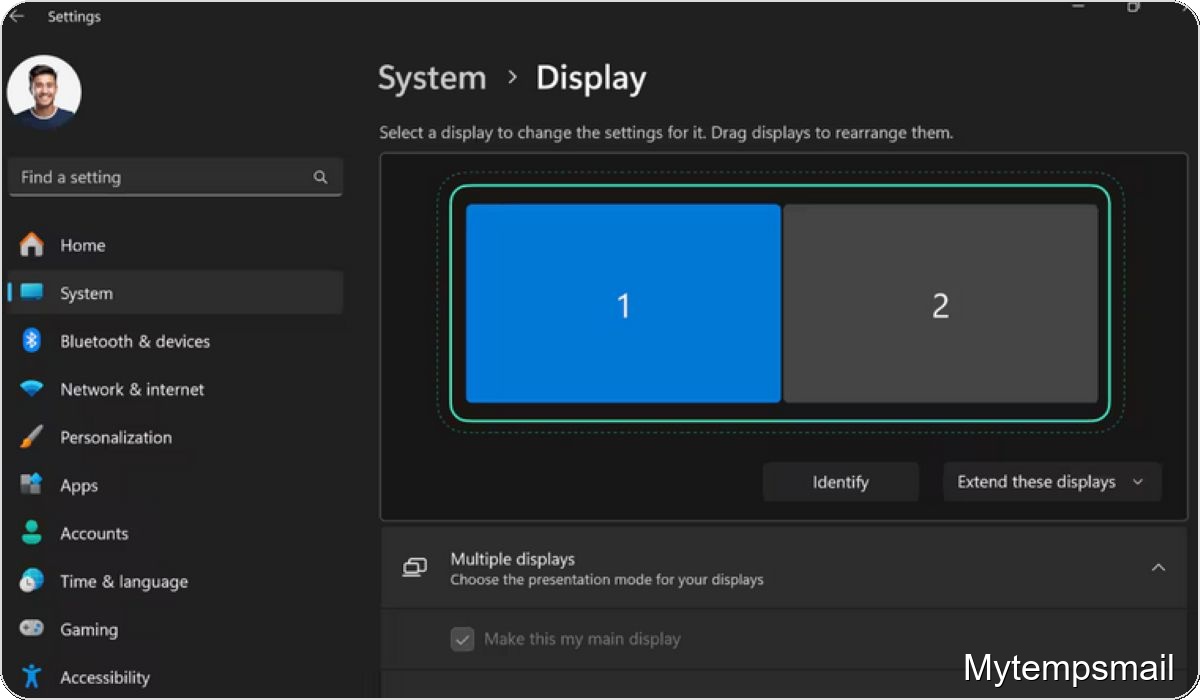
Connect the second monitor to your computer and set the display arrangement in your operating system (side-by-side, stacked, etc.). Make sure both displays are recognized and the cursor moves smoothly between them.
2. Open Filmora and import your footage
With the displays configured, open Wondershare Filmora 15 and choose New Project or load an existing project. Drag the Filmora window across your screens or maximize it on one display, leaving the other free for previewing or managing assets.
3. Distribute panels across the screens
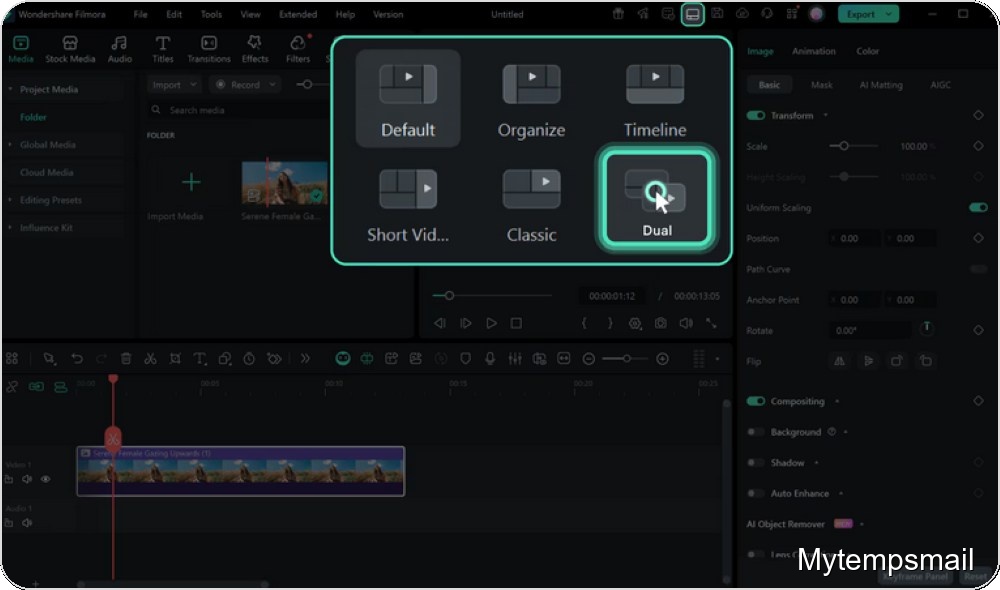
Organize the interface to match your workflow. Keep the timeline and core editing tools on your primary monitor and dedicate the secondary monitor to a larger preview window, media library, effects, titles, and extra controls. Resize and reposition panels until you find a comfortable layout.
4. Start editing with expanded workspace
Use the extended view to make cuts and adjustments on one screen while monitoring the final output in real time on the other. This setup reduces unnecessary clicks, speeds decision-making, and makes editing more precise.
Which Filmora features help create better videos?
Filmora 15 includes the essential editing tools professionals expect: trimming, merging, image and audio controls, effects, and text insertion. Those basics are the foundation for every editor.
On top of that, Filmora offers extras like a pen tool for targeted visual effects using external devices and several artificial intelligence features. The built-in library of predesigned effects and templates also helps accelerate routine tasks.
Importantly, Filmora detects multiple monitors without extra configuration, so once your displays are connected the software uses them seamlessly. That reliability supports faster, more accurate editing workflows.
Optimize two-screen space to save time
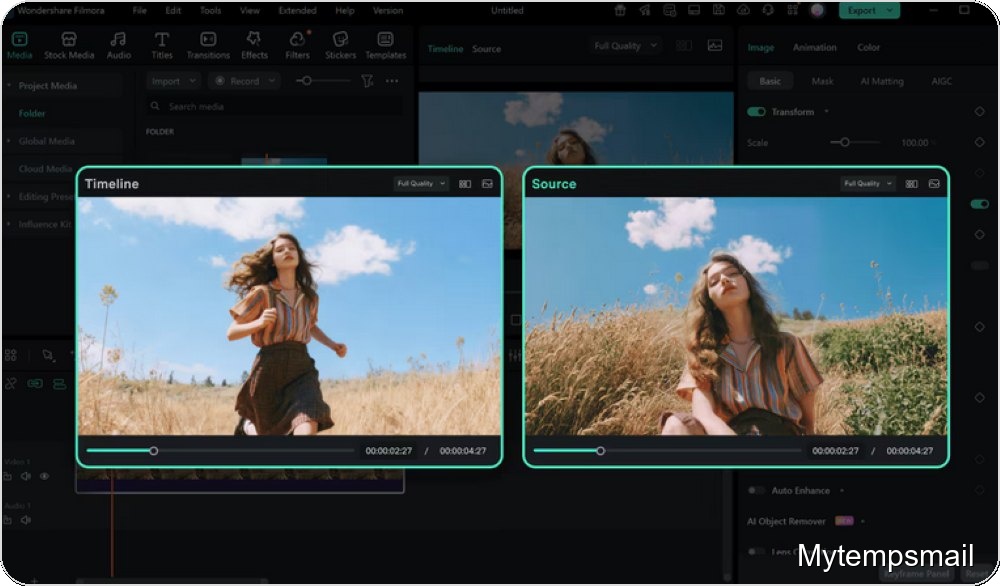
When Filmora 15 recognizes two monitors, treat them as a productivity dashboard. Place the timeline, media panels, and audio controls on one display and dedicate the other to a full-size preview.
Each edit — whether a cut, color tweak, or transition — can be checked instantly without feeling cramped. This visual organization cuts down on window juggling and reduces the chance of mistakes on long projects.
Use Filmora to organize files and project versions
Speed is also affected by how you organize assets. In Filmora 15, create folders or bins for main footage, supporting audio, music tracks, stock images, and text files when you import media.
Keep those folders open on the larger or secondary monitor for easy drag-and-drop to the timeline. Good initial organization prevents file hunting and makes it simple to create variations by duplicating a project and swapping media.
Keyboard shortcuts and batch actions to accelerate routine work
Editing with two monitors without keyboard shortcuts is inefficient. Filmora provides combinations for cutting clips, undoing actions, splitting tracks, zooming the timeline, and navigating the project.
Paired with the expanded view, shortcuts let one hand control the mouse while the other issues quick commands. Over long editing sessions that can save minutes or even hours each week.
Two monitors make Filmora a complete animated-video studio
Filmora 15 centralizes cuts, effects, captions, titles, graphics, and soundtracks. Use one monitor to build the logical structure of the video and the other to test text animations, overlays, filters, and motion adjustments at larger scale.
The split between timeline and preview enables rapid decisions: late titles, long transitions, or low-contrast graphics become obvious on the extra screen.
Leverage Filmora’s AI features for real productivity gains
Filmora’s AI tools such as automatic image and audio enhancement, noise removal, and scene detection cut manual steps that once required numerous tweaks.
Run these automated processes on one monitor while you review the overall project on the other. Then apply fine adjustments only where needed, keeping quality high without marathon editing sessions.
Templates, presets, and libraries to speed everyday work
Using templates and prebuilt effects lets you start faster. Filmora 15 includes titles, transitions, overlays, and graphic elements with balanced animation and style.
Choose a visual package that fits your channel or brand, then tweak colors, text, and logos. Browse the library on one screen and test options in the preview on the other until you find the right look.
Break tasks into stages to make the most of two screens
Structure work in blocks: rough cuts first, transitions next, then titles and graphics, and finally audio and color correction. With Filmora and two monitors you can see progress for each stage clearly.
While the timeline shows the assembled sequence, the second monitor can show dedicated audio or color panels, avoiding buried windows and keeping the process manageable for editors at every level.
Common mistakes when editing with two monitors and how to fix them
Typical missteps include opening too many panels, scattering tools without logical placement, failing to standardize project folders, changing layouts between projects, and keeping the timeline overly compressed.
Fix these issues by testing layouts until you find a clear configuration and then reusing that pattern. Predictable panel locations help you find tools faster and reduce mental fatigue from repetitive tasks.
Quick checklist to finish a project safely
Before you hit Export, use the two monitors to perform a final review:
- Play the video full screen on your primary monitor to check pacing, cuts, and transitions.
- Keep the timeline, audio controls, and effects panels visible on the second monitor.
- Look for unintended silence, abrupt cuts, or duplicated scenes.
- Verify titles and graphics for spelling, placement, and reading time.
- Balance overall volume between voice, music, and effects.
- Do a last quick pass through the timeline to ensure nothing is out of place.
This final check, combined with Filmora 15 and an extra monitor, speeds up delivery while maintaining a consistent, professional result for viewers.
